

What is True Tone in iPhone? 5 Seconds to Better Screen Comfort

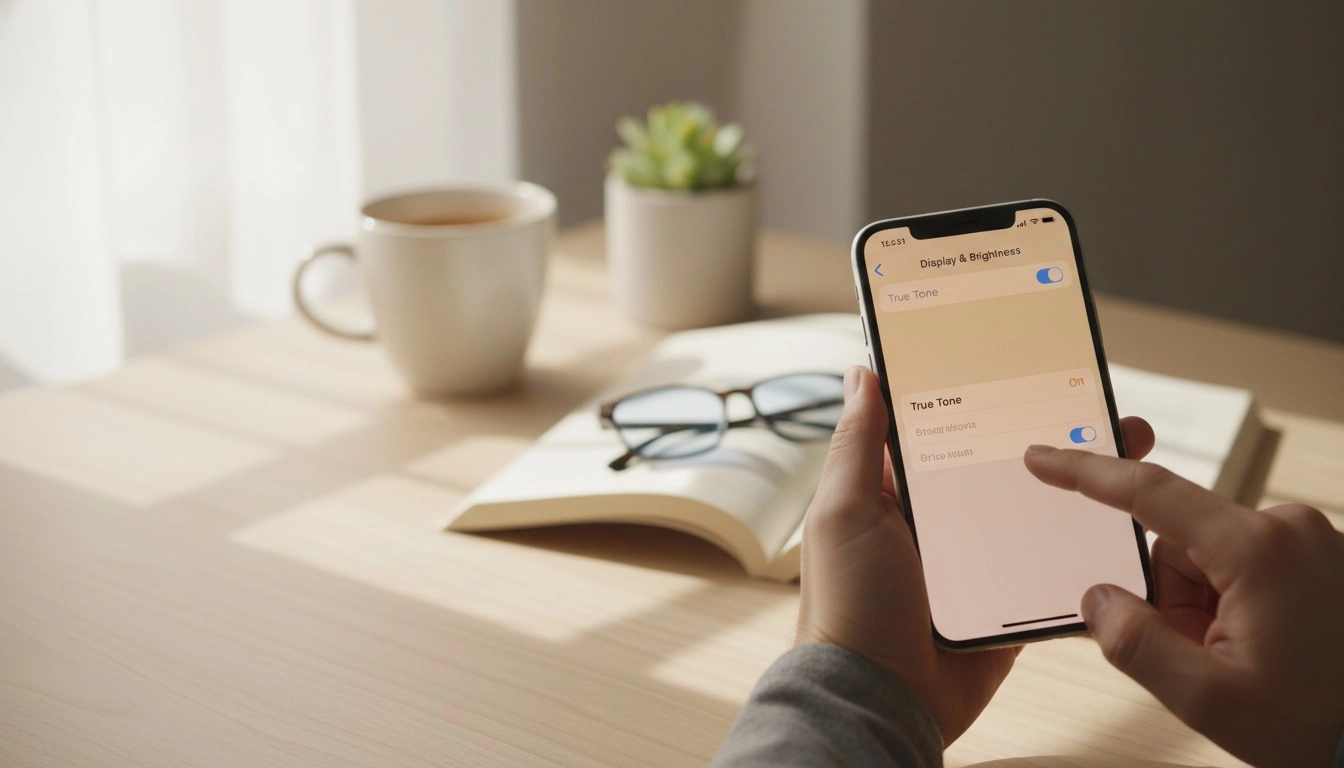
If you’ve ever searched what is true tone in iphone because your screen looked warmer in one room and cooler in another, you’re not alone. Your display is not malfunctioning. True Tone changes how your screen looks based on the light around you.
Apple designed the feature to make images and text look more natural in different environments. Under warm indoor lighting, your screen may look slightly warmer. Near a bright window, the display may look cooler and cleaner.
What is True Tone in iPhone?
True Tone is a display feature found on supported iPhones, iPads, and Macs. Apple says the feature uses advanced sensors to adjust the color and intensity of your display to match the ambient light, so images appear more natural.
Think about a white sheet of paper. It looks warmer under a yellow bedside lamp and cooler under daylight. True Tone gives your display a similar visual response. The goal is a screen that feels easier to view as your surroundings change.
True Tone is enabled by default on supported models. When you switch it off, the display keeps a more constant color and intensity, even when the lighting around you changes.
How Does True Tone Work?
Your iPhone checks the light around you and adjusts the display response. The change may feel subtle in daylight. It often looks more obvious under warm bulbs, dim lamps, or mixed lighting.
You may notice a light yellow tint when you first enable the feature. This does not mean your display has a problem. Your eyes often need a few minutes to adjust, especially after using a cooler-looking screen for a long time.
True Tone does not apply a fixed orange filter. The appearance changes with your environment. A bedroom lamp, office tube light, coffee shop window, and outdoor shade may each produce a slightly different result.
Which iPhones Support True Tone?
Apple lists True Tone support for iPhone 8 and later, plus iPhone SE (2nd generation) and later. Older iPhones do not offer the True Tone display setting.
- iPhone 8 and iPhone 8 Plus
- iPhone X, XR, XS, and later numbered iPhone generations
- iPhone SE (2nd generation) and later SE models
Do not confuse True Tone display with True Tone flash. Older iPhones may mention True Tone flash in camera specifications. The flash feature relates to camera lighting, not automatic display adjustment.
How to Turn True Tone On or Off
You have two simple options. The Control Center method is faster. The Settings method is useful when you want to review other display options at the same time.
Method 1: Use Control Center
- Open Control Center. On newer iPhones, swipe down from the top-right corner.
- Touch and hold the brightness slider.
- Tap True Tone to turn the feature on or off.
Method 2: Use the Settings App
- Open the Settings app.
- Tap Display & Brightness.
- Tap the switch beside True Tone.
True Tone vs Night Shift vs Auto-Brightness
These settings sound similar because each one changes your display experience. They serve different purposes. Turning on one feature does not make the other settings unnecessary.
| Feature | What It Changes | How It Works | Best Use |
|---|---|---|---|
| True Tone | Display color and intensity | Responds to ambient light | Natural everyday viewing |
| Night Shift | Color temperature | Moves colors toward the warmer end of the spectrum, often on a schedule | Evening and low-light use |
| Auto-Brightness | Brightness level | Raises or lowers brightness based on surrounding light | Comfort and battery management |
| Dark Mode | Interface theme | Uses darker backgrounds across iOS and supported apps | Low-light viewing and personal preference |
Night Shift uses your device clock and location to estimate sunset, then shifts the screen toward warmer colors. Auto-Brightness focuses on screen brightness. True Tone focuses on a more natural-looking display under changing light.
Should You Keep True Tone On?
For regular use, leave True Tone on for a few days and judge the result in different rooms. Reading, browsing, messaging, and social media often feel more comfortable when the display adapts to your surroundings.
Switch it off when you need a stable visual reference. Photo editing, video color work, design checks, and product image review often need a consistent display appearance. Otherwise, you may judge colors while the screen keeps shifting with the room light.
Why Does True Tone Look Yellow?
A warmer appearance is common under warm indoor lighting. The effect may stand out if you previously used a cool-looking display or turned the setting on while sitting under a yellow bulb.
Try moving near a window during daylight. Compare the display again. If the screen still looks unusually yellow with True Tone off, review Night Shift, Color Filters, and display repair history.
True Tone Missing After a Screen Replacement
A screen replacement does not automatically remove True Tone. Still, Apple warns that a non-genuine display may cause compatibility or performance issues. True Tone may stop working correctly. Ambient light sensor performance and display color calibration may also become less reliable.
Use a trained repair provider with genuine Apple display parts when you need a replacement. After a repair, check the True Tone toggle and compare the display under different lighting conditions.
How to Check Parts and Service History
Apple lets owners of iPhone 11 models and later review parts and service history, excluding iPhone SE (2nd and 3rd generation). Use these steps:
- Open Settings.
- Tap General.
- Tap About.
- Scroll to Parts and Service History, if the section appears.
A genuine repair may show Genuine beside the display. An Unknown message may appear when the part is not genuine, is not working as expected, has not been verified and linked after repair, or has been modified.
Troubleshooting Common True Tone Problems
The True Tone Option Is Missing
- Confirm your iPhone model supports True Tone.
- Open Settings > Display & Brightness and look for the switch.
- Review any recent screen replacement or repair.
- Check Parts and Service History on supported iPhones.
The Screen Looks Too Yellow
- Turn True Tone off and compare the screen.
- Open Settings > Display & Brightness > Night Shift and review the schedule and temperature slider.
- Open Settings > Accessibility > Display & Text Size > Color Filters and check whether a filter is active.
- Compare the display outdoors or near daylight.
Brightness Keeps Changing
This issue often relates to Auto-Brightness, not True Tone. Open Settings > Accessibility > Display & Text Size. Scroll to Auto-Brightness, then turn the switch off and on again if brightness adjustment seems inaccurate.
Accessibility Settings Turned True Tone Off
Apple notes that some display accessibility settings may turn off True Tone. Examples include Invert Colors, Grayscale, and Increase Contrast. Review Settings > Accessibility > Display & Text Size if True Tone behaves differently after an accessibility change.
Does True Tone Drain the Battery?
True Tone is not the first setting to change when battery life drops. Screen brightness has a more direct effect on battery use. Apple recommends letting Auto-Brightness adjust the display or lowering brightness when you want longer battery life.
If your battery starts draining after a screen repair, pay attention. Apple lists unintended battery drain as one possible issue with non-genuine displays. Review your repair history and seek qualified support if the problem began after a display replacement.
When Should You Turn True Tone Off?
- Turn it off while editing product images for an online store.
- Turn it off while checking brand colors, logos, and website graphics.
- Turn it off when comparing two displays side by side.
- Turn it off during troubleshooting to see whether True Tone causes the tint.
For reading, browsing, messaging, and everyday use, leave it on unless you dislike the appearance. Personal comfort matters more than keeping every display feature active.
FAQs About True Tone on iPhone
What does True Tone do on iPhone?
True Tone adjusts the color and intensity of your display to match the surrounding light. The feature aims to make the screen look more natural in different environments.
Is True Tone the same as Night Shift?
No. True Tone responds to ambient light. Night Shift moves display colors toward a warmer appearance, usually according to a schedule or sunset-to-sunrise timing.
Should I use True Tone all the time?
Use it for everyday viewing if you like the result. Switch it off during color-sensitive tasks such as photo editing, product image review, or design checks.
Why did True Tone disappear after a repair?
A display repair may affect True Tone if the replacement part or repair process creates compatibility issues. Apple warns that nongenuine displays may cause True Tone, sensor, and color calibration problems.
Does True Tone change screenshots?
No. True Tone changes how your screen presents content. It does not add a permanent color effect to your screenshots, photos, or saved videos.
Why is my iPhone screen still yellow after turning off True Tone?
Check Night Shift, Color Filters, and display repair history. Night Shift may keep the display warm. A color filter or display calibration issue may also affect the result.
Final Takeaway
True Tone is a useful iPhone display feature for everyday viewing. It adapts your display to the lighting around you and often makes reading feel more natural. Leave it on for daily use. Turn it off when you need stable colors or want to troubleshoot a display issue.
For Apple’s official instructions, visit Adjust the brightness and color temperature on your iPhone or iPad. For repair details, read About genuine iPhone displays.
